NetBIOS Hacking
For this tutorial, I used Mcft’s Windows XP Home Edition OS.
-What is it?-
NetBIOS
Hacking is the art of hacking into someone else’s computer through your
computer. NetBIOS stands for “Network Basic Input Output System.” It is
a way for a LAN or WAN to share folders, files, drives, and printers.
-How can this be of use to me?-
Most
people don’t even know, but when they’re on a LAN or WAN they could
possibly have their entire hard drive shared and not even know. So if
we can find a way into the network, their computer is at our disposal.
-What do I need?-
Windows OS
Cain and Abel (http://www.oxid.it/)
++++++++++++++++++++++++++++++++++++++++++++++++++++++++++++++++++++++++++++++++++++++++++++++++++++++++++++
-[Step 1, Finding the target.]-
++++++++++++++++++++++++++++++++++++++++++++++++++++++++++++++++++++++++++++++++++++++++++++++++++++++++++++
So
first off we need to find a computer or the computer to hack into. So
if your plugged in to the LAN, or connected to the WAN, you can begin.
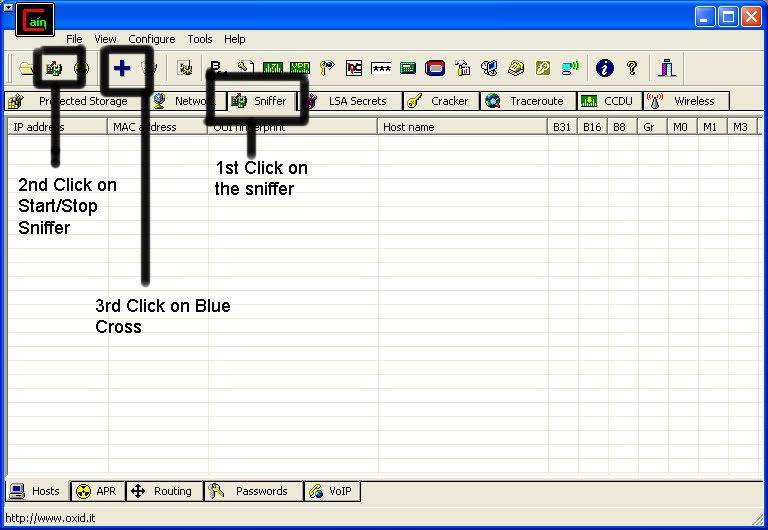
Open up Cain and Abel. This program has a built in sniffer feature. A
sniffer looks for all IP addresses in the local subnet. Once you have
opened up the program click on the sniffer tab, click the Start/Stop
sniffer, and then click the blue cross
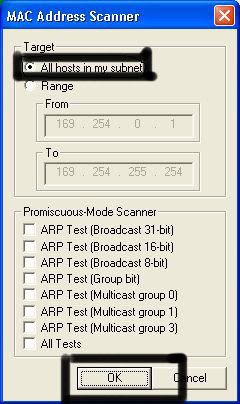
Another window will pop up, make sure “All host in my subnet” is selected, and then click ok.
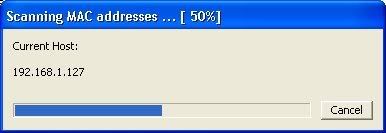
It should begin to scan.
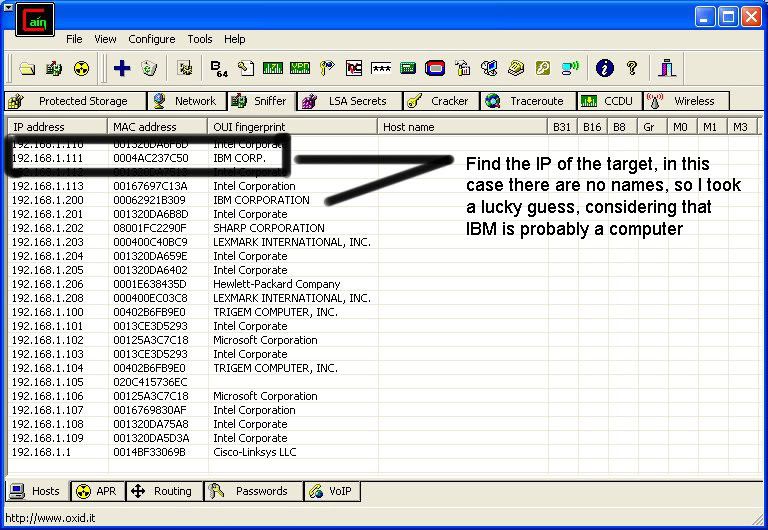
Then IP’s, computer names, and mac addresses will show up.
Now remember the IP address of the computer you are going to be breaking into.
If you can’t tell whether the IP address is a computer, router, modem, etc, that’s ok.
During the next step we will begin our trial and error.
++++++++++++++++++++++++++++++++++++++++++++++++++++++++++++++++++++++++++++++++++++++++++++++++++++++++++++
-[Part 2, Trial and Error]-
++++++++++++++++++++++++++++++++++++++++++++++++++++++++++++++++++++++++++++++++++++++++++++++++++++++++++++
Now,
we don’t know if we have our designated target, or if we have a
computer or printer, or whatever else is on the LAN or WAN.
If you did get the IP of the target though, I still recommend reading through this section, for it could be helpful later on.
Click on the start menu and go to run, type in cmd, and click ok.
This should bring up the command prompt.
From here we will do most of the hacking.
Now I will be referring to certain commands that need to be inputted into the command prompt.
I will put these commands in quotes, but do not put the quotes in the code when you type it into the prompt.
I am only doing this to avoid confusion.
Let’s get back to the hacking.
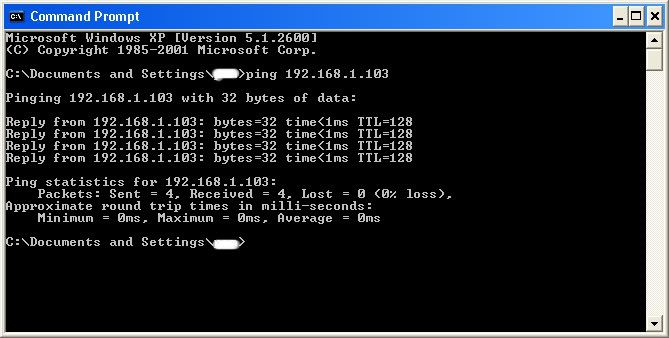
Type in “ping (IP address of the target).” For example in this tutorial, “ping 192.168.1.103.”
This will tell us if the target is online.
If it worked, it will look something like this (note, I have colored out private information):
IF it didn’t work, meaning that the target is not online, it will look something like this:
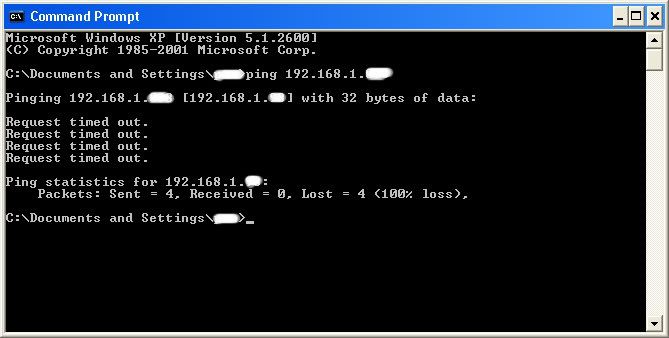
If the target is not online, either switch to a different target, or
try another time. If the target is online, then we can proceed.
++++++++++++++++++++++++++++++++++++++++++++++++++++++++++++++++++++++++++++++++++++++++++++++++++++++++++++
-[Part 3, Gathering the Information.]-
++++++++++++++++++++++++++++++++++++++++++++++++++++++++++++++++++++++++++++++++++++++++++++++++++++++++++++
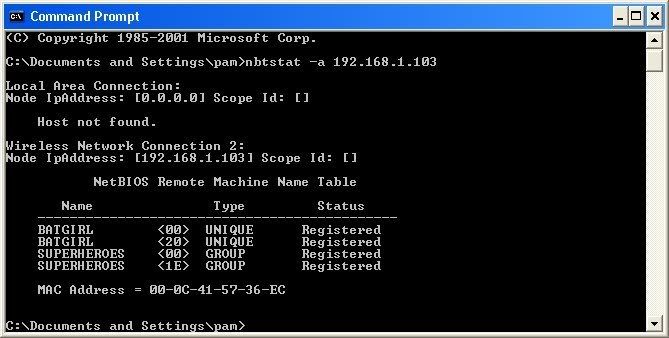
Now, input this command “nbtstat –a (IP address of target).” An example would be “nbtstat –a 192.168.1.103.”
This
will show us if there is file sharing enabled, and if there is, it will
give us the: currently logged on user, workgroup, and computer name.
Ok, you’re probably wondering, “What does all this mean to me?” Well,
this is actually very important, without this, the hack would not work.
So, let me break it down from the top to bottom. I will just give the
first line of information, and then explain the paragraph that follows
it.
The information right below the original command says:
“Local Area Connection,” this information tells us about our connection
through the LAN, and in my case, I am not connected through LAN, so the
host is not found, and there is no IP.
The information right
below the “Local Area Connection,” is “Wireless Network Connection 2:”
It gives us information about the connection to the target through WAN.
In my case I am connected through the WAN, so it was able to find the
Node IpAddress. The Node IpAddress is the local area IP of the computer
you are going to break into.
The NetBIOS Remote Machine Name
Table, give us the workgroup of our computer, tells us if it is shared,
and gives us the computer name. Sometimes it will even give us the
currently logged on user, but in my case, it didn’t. BATGIRL is the
name of the computer I am trying to connect to. If you look to the
right you should see a <20>. This means that file sharing is
enabled on BATGIRL. If there was not a <20> to the right of the
Name, then you have reached a dead end and need to go find another IP,
or quit for now. Below BATGIRL is the computers workgroup, SUPERHEROES.
If you are confused about which one is the workgroup, and the computer,
look under the Type category to the right of the < > for every
Name. If it says UNIQUE, it is one system, such as a printer or
computer. If it is GROUP, then it is the workgroup
++++++++++++++++++++++++++++++++++++++++++++++++++++++++++++++++++++++++++++++++++++++++++++++++++++++++++++
-[Step 4, Breaking In]-
++++++++++++++++++++++++++++++++++++++++++++++++++++++++++++++++++++++++++++++++++++++++++++++++++++++++++++
Finally it’s time.
By now we know: that our target is online, our target has file sharing, and our target’s computer name.
So it’s time to break in.
We will now locate the shared drives, folders, files, or printers. Type in “net view \\(IP Address of Target)”
An example for this tutorial would be: “net view \\192.168.1.103”
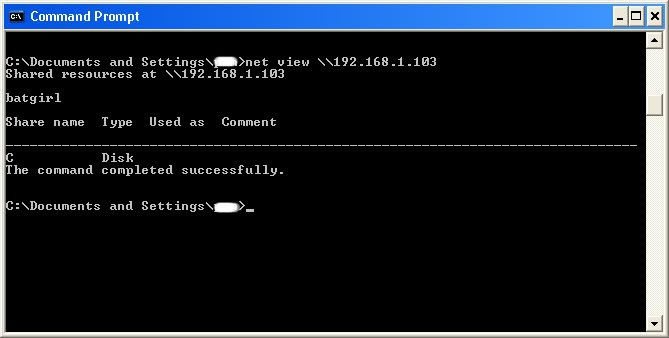
We have our just found our share name. In this case, under the share
name is “C,” meaning that the only shared thing on the computer is C.
Then to the right, under Type, it says “Disk.” This means that it is
the actual C DISK of the computer. The C DISK can sometimes be an
entire person’s hard drive.
All's that is left to do is “map”
the shared drive onto our computer. This means that we will make a
drive on our computer, and all the contents of the targets computer can
be accessed through our created network drive. Type in “net use K:
\\(IP Address of Target)\(Shared Drive). For my example in this
tutorial, “net use K: \\192.168.1.103\C.” Ok, let’s say that you plan
on doing this again to a different person, do u see the “K after “net
use?” This is the letter of the drive that you are making on your
computer. It can be any letter you wish, as long as the same letter is
not in use by your computer. So it could be “net use G...,” for a
different target.
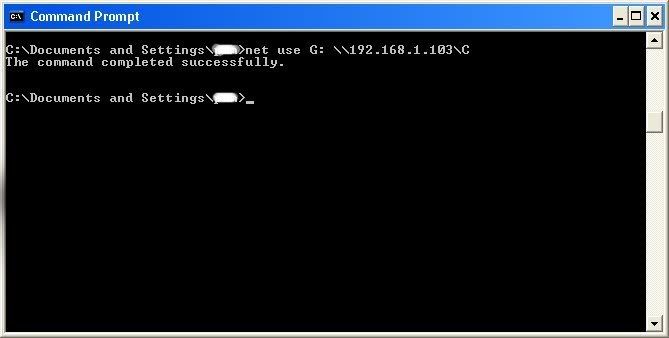
As you can see, for my hack I have already used “K,” so I used “G” instead.
You may also do the same for multiple hacks.
If it worked, it will say “The command completed successfully.”
If not, you will have to go retrace you steps.
Now open up “my computer” under the start menu, and your newly created network drive should be there.
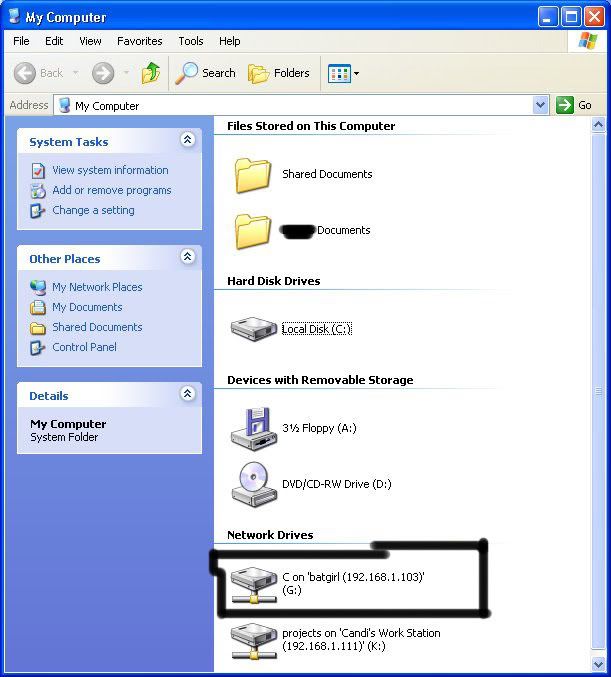
Now, if you disconnect from the WAN or LAN, you will not be able to access this drive, hence the name Network Drive.
The
drive will not be deleted after you disconnect though, but you won’t be
able to access it until you reconnect to the network.
So if you
are doing this for the content of the drive, I recommend dragging the
files and folders inside of the drive onto your computer,
because you never know if the target changes the sharing setting.
If you are just doing this to hack something, then go explore it and have some well deserved fun!
Congratulations! You’re DONE!
-Commands used in this tutorial:
PING
NBTSTAT -a (IP Address of Target)
NET VIEW \\(IP Address of Target)
NET USE K: \\(IP Address of Target)\(SHARENAME)
For this tutorial, I used Mcft’s Windows XP Home Edition OS.
-What is it?-
NetBIOS
Hacking is the art of hacking into someone else’s computer through your
computer. NetBIOS stands for “Network Basic Input Output System.” It is
a way for a LAN or WAN to share folders, files, drives, and printers.
-How can this be of use to me?-
Most
people don’t even know, but when they’re on a LAN or WAN they could
possibly have their entire hard drive shared and not even know. So if
we can find a way into the network, their computer is at our disposal.
-What do I need?-
Windows OS
Cain and Abel (http://www.oxid.it/)
++++++++++++++++++++++++++++++++++++++++++++++++++++++++++++++++++++++++++++++++++++++++++++++++++++++++++++
-[Step 1, Finding the target.]-
++++++++++++++++++++++++++++++++++++++++++++++++++++++++++++++++++++++++++++++++++++++++++++++++++++++++++++
So
first off we need to find a computer or the computer to hack into. So
if your plugged in to the LAN, or connected to the WAN, you can begin.
Open up Cain and Abel. This program has a built in sniffer feature. A
sniffer looks for all IP addresses in the local subnet. Once you have
opened up the program click on the sniffer tab, click the Start/Stop
sniffer, and then click the blue cross
Another window will pop up, make sure “All host in my subnet” is selected, and then click ok.
It should begin to scan.
Then IP’s, computer names, and mac addresses will show up.
Now remember the IP address of the computer you are going to be breaking into.
If you can’t tell whether the IP address is a computer, router, modem, etc, that’s ok.
During the next step we will begin our trial and error.
++++++++++++++++++++++++++++++++++++++++++++++++++++++++++++++++++++++++++++++++++++++++++++++++++++++++++++
-[Part 2, Trial and Error]-
++++++++++++++++++++++++++++++++++++++++++++++++++++++++++++++++++++++++++++++++++++++++++++++++++++++++++++
Now,
we don’t know if we have our designated target, or if we have a
computer or printer, or whatever else is on the LAN or WAN.
If you did get the IP of the target though, I still recommend reading through this section, for it could be helpful later on.
Click on the start menu and go to run, type in cmd, and click ok.
This should bring up the command prompt.
From here we will do most of the hacking.
Now I will be referring to certain commands that need to be inputted into the command prompt.
I will put these commands in quotes, but do not put the quotes in the code when you type it into the prompt.
I am only doing this to avoid confusion.
Let’s get back to the hacking.
Type in “ping (IP address of the target).” For example in this tutorial, “ping 192.168.1.103.”
This will tell us if the target is online.
If it worked, it will look something like this (note, I have colored out private information):
IF it didn’t work, meaning that the target is not online, it will look something like this:
If the target is not online, either switch to a different target, or
try another time. If the target is online, then we can proceed.
++++++++++++++++++++++++++++++++++++++++++++++++++++++++++++++++++++++++++++++++++++++++++++++++++++++++++++
-[Part 3, Gathering the Information.]-
++++++++++++++++++++++++++++++++++++++++++++++++++++++++++++++++++++++++++++++++++++++++++++++++++++++++++++
Now, input this command “nbtstat –a (IP address of target).” An example would be “nbtstat –a 192.168.1.103.”
This
will show us if there is file sharing enabled, and if there is, it will
give us the: currently logged on user, workgroup, and computer name.
Ok, you’re probably wondering, “What does all this mean to me?” Well,
this is actually very important, without this, the hack would not work.
So, let me break it down from the top to bottom. I will just give the
first line of information, and then explain the paragraph that follows
it.
The information right below the original command says:
“Local Area Connection,” this information tells us about our connection
through the LAN, and in my case, I am not connected through LAN, so the
host is not found, and there is no IP.
The information right
below the “Local Area Connection,” is “Wireless Network Connection 2:”
It gives us information about the connection to the target through WAN.
In my case I am connected through the WAN, so it was able to find the
Node IpAddress. The Node IpAddress is the local area IP of the computer
you are going to break into.
The NetBIOS Remote Machine Name
Table, give us the workgroup of our computer, tells us if it is shared,
and gives us the computer name. Sometimes it will even give us the
currently logged on user, but in my case, it didn’t. BATGIRL is the
name of the computer I am trying to connect to. If you look to the
right you should see a <20>. This means that file sharing is
enabled on BATGIRL. If there was not a <20> to the right of the
Name, then you have reached a dead end and need to go find another IP,
or quit for now. Below BATGIRL is the computers workgroup, SUPERHEROES.
If you are confused about which one is the workgroup, and the computer,
look under the Type category to the right of the < > for every
Name. If it says UNIQUE, it is one system, such as a printer or
computer. If it is GROUP, then it is the workgroup
++++++++++++++++++++++++++++++++++++++++++++++++++++++++++++++++++++++++++++++++++++++++++++++++++++++++++++
-[Step 4, Breaking In]-
++++++++++++++++++++++++++++++++++++++++++++++++++++++++++++++++++++++++++++++++++++++++++++++++++++++++++++
Finally it’s time.
By now we know: that our target is online, our target has file sharing, and our target’s computer name.
So it’s time to break in.
We will now locate the shared drives, folders, files, or printers. Type in “net view \\(IP Address of Target)”
An example for this tutorial would be: “net view \\192.168.1.103”
We have our just found our share name. In this case, under the share
name is “C,” meaning that the only shared thing on the computer is C.
Then to the right, under Type, it says “Disk.” This means that it is
the actual C DISK of the computer. The C DISK can sometimes be an
entire person’s hard drive.
All's that is left to do is “map”
the shared drive onto our computer. This means that we will make a
drive on our computer, and all the contents of the targets computer can
be accessed through our created network drive. Type in “net use K:
\\(IP Address of Target)\(Shared Drive). For my example in this
tutorial, “net use K: \\192.168.1.103\C.” Ok, let’s say that you plan
on doing this again to a different person, do u see the “K after “net
use?” This is the letter of the drive that you are making on your
computer. It can be any letter you wish, as long as the same letter is
not in use by your computer. So it could be “net use G...,” for a
different target.
As you can see, for my hack I have already used “K,” so I used “G” instead.
You may also do the same for multiple hacks.
If it worked, it will say “The command completed successfully.”
If not, you will have to go retrace you steps.
Now open up “my computer” under the start menu, and your newly created network drive should be there.
Now, if you disconnect from the WAN or LAN, you will not be able to access this drive, hence the name Network Drive.
The
drive will not be deleted after you disconnect though, but you won’t be
able to access it until you reconnect to the network.
So if you
are doing this for the content of the drive, I recommend dragging the
files and folders inside of the drive onto your computer,
because you never know if the target changes the sharing setting.
If you are just doing this to hack something, then go explore it and have some well deserved fun!
Congratulations! You’re DONE!
-Commands used in this tutorial:
PING
NBTSTAT -a (IP Address of Target)
NET VIEW \\(IP Address of Target)
NET USE K: \\(IP Address of Target)\(SHARENAME)

No comments:
Post a Comment